Valencia City Water District · DocuManage
Login & Access
Resume: §2 Login screen · §3 Signing in1. Opening the system
- Open the DocuManage URL provided by your IT office (for example:
https://vcwd.site/mydocman). - If you are not signed in, you are taken to the login page automatically.
- The User Manual link at the bottom of the login screen opens this documentation without signing in.
2. Login screen
On a wide screen, the page shows the login form on the left and a VCWD building photo with the tagline on the right. On phones, the form stacks and remains usable.
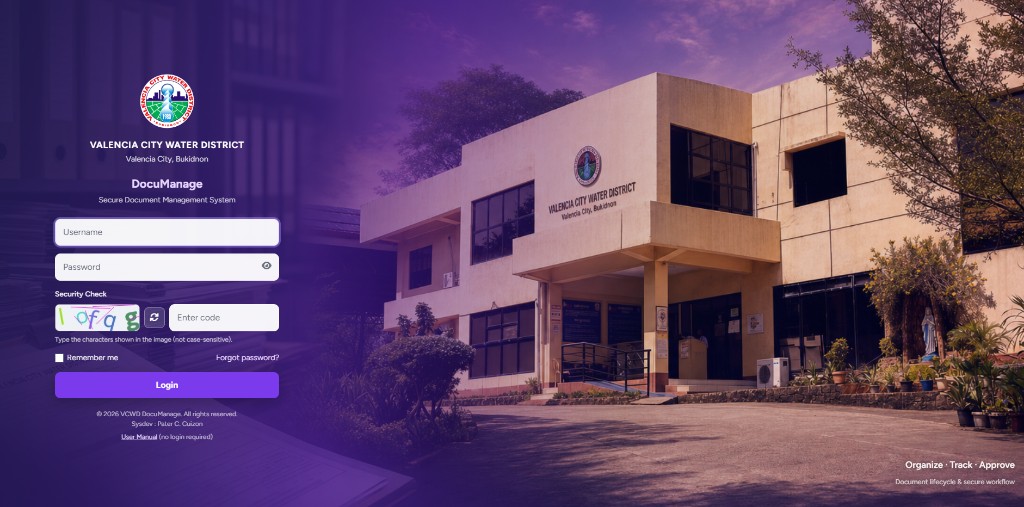
| Element | Description |
|---|---|
| Logo & org name | Valencia City Water District — Valencia City, Bukidnon |
| DocuManage | Secure Document Management System |
| Username | Your assigned login name (not email) |
| Password | Your account password; eye icon to show or hide |
| Security Check | CAPTCHA image + Enter code field (unless disabled by administrator) |
| Refresh | Click the refresh icon or the image for a new code if hard to read |
| Remember me | Optional — stay signed in on this browser |
| Forgot password? | Password reset (if enabled) |
| Login | Submits the form |
| Right panel | Organize · Track · Approve — document lifecycle tagline |
| Footer | Copyright · Sysdev credit · User Manual link |
CAPTCHA text is not case-sensitive. Type the characters shown in the image, not the label text.
3. Signing in — step by step
| Step | Action |
|---|---|
| 1 | Enter your Username. |
| 2 | Enter your Password (use the eye icon if needed). |
| 3 | Read the Security Check image and type the characters in Enter code. |
| 4 | Refresh the CAPTCHA if you cannot read it. |
| 5 | Optionally check Remember me. |
| 6 | Click Login. |
On success you are taken to the Dashboard (/dashboard). See Module 02 — Dashboard & Navigation.
4. Login errors
| Message / situation | What to do |
|---|---|
| Invalid username or password | Check Caps Lock; confirm credentials with your administrator. |
| Security code does not match | Re-enter the CAPTCHA or refresh the image. |
| Too many attempts | Wait a few minutes (rate limit), then try again. |
| Cannot contact the database | Server or database issue — contact IT; try again later. |
After several failed attempts per username or IP address, login may be temporarily blocked for security.
5. Signing out
- In the left sidebar, click the red Logout button at the bottom.
- Your session ends and you return to the login page.
Always log out on shared or public computers.
6. Password reset (if enabled)
- On the login page, click Forgot password?
- Follow the on-screen steps to request a reset link.
- If email is not configured, contact your system administrator.
7. What you see after login
- Top navigation bar (purple) — Dashboard, User Management, Manage Documents, Approvals, etc. (depends on role)
- Left sidebar — full module menu for your role
- Main area — usually the Dashboard home screen