Valencia City Water District · DocuManage
Dashboard & Navigation
Resume: §3 Screen layout · §4 KPI cards1. Purpose
The Dashboard is the home screen after login. It gives a quick summary of document counts, lets you search and filter documents, and links to the rest of the system through the top bar and left sidebar.
What you see depends on your role (Administrator, Document Controller, Approver, Contributor, or Viewer). Some KPI cards and menu items are hidden if you do not have permission.
2. After login
- Sign in with your VCWD account.
- You are taken to the Dashboard (unless your role uses a different default).
- Read the welcome line: Welcome, [Your Name] — [Role panel description].
Example (Administrator): Administrator Panel: Full access to all roles.
3. Screen layout
The dashboard has four main areas: left sidebar, top navigation, main content (KPI cards + Documents Overview), and optional activity toasts (bottom-right).
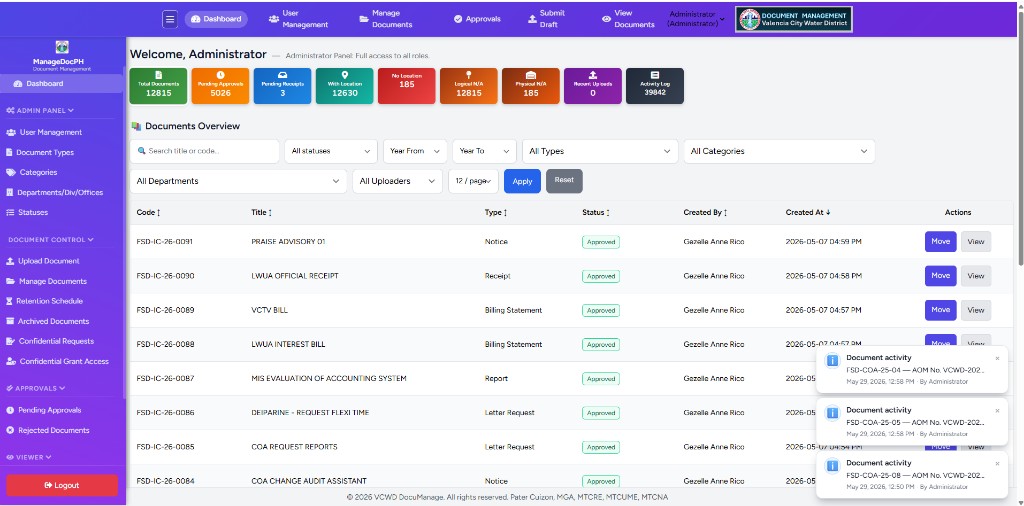
| Area | Location | See section |
|---|---|---|
| Left sidebar | Purple panel on the left | §8 |
| Top navigation | Purple bar across the top | §7 |
| Welcome & KPI cards | Top of main content | §4 |
| Documents Overview | Search, filters, document table | §5 |
| Activity toasts | Bottom-right pop-ups | §6 |
| Footer | Copyright line at bottom | — |
4. KPI summary cards
Colored cards below the welcome message. Each card is clickable and opens a filtered view or related page.
| Card | Typical color | Opens |
|---|---|---|
| Total Documents | Green | Documents Overview (all documents) |
| Pending Approvals | Orange | Approvals or filtered pending list |
| Pending Receipts | Blue | Movements awaiting receipt |
| With Location | Teal | Documents with storage/location set |
| No Location | Red | Documents missing location |
| Logical N/A | Brown | Logical location marked N/A |
| Physical N/A | Brown | Physical storage marked N/A |
| Recent Uploads | Purple | Documents uploaded in the last 7 days |
| Activity Log | Gray | Full activity log (Administrator only) |
5. Documents Overview
The large table in the center of the dashboard (see Figure 1).
- Search — title or document code
- Filters — Status, Year From/To, Types, Categories, Departments, Uploaders, rows per page
- Apply (blue) / Reset (gray)
- Columns — Code, Title, Type, Status (badge), Created By, Created At
- Actions — Move and View per row (depends on role)
- Column headers may be sortable where enabled
For full document management tasks, use Manage Documents in the sidebar or top bar (see module guides when published).
6. Movements & notifications
6.1 Recent Document Movements
Below the overview table (when shown): short list of latest movements, link to Pending Receipts when applicable, and Go to Movements History for the full module.
6.2 Activity notifications
Blue Document activity toasts may appear at the bottom-right (e.g. document created, updated, moved, received). They summarize recent system activity without leaving the dashboard.
7. Top navigation bar
Fixed purple bar at the top of every page (see Figure 1, top).
| Link | Who sees it | Purpose |
|---|---|---|
| Dashboard | All | Return to home / KPIs |
| User Management | Administrator | User accounts |
| Manage Documents | Admin, Document Controller, Contributor | Document list |
| Approvals | Administrator, Approver | Pending approvals |
| Submit Draft | Contributor (and similar) | Upload new document |
| View Documents | Viewer / others | Read-only list |
Right side: your name and role (dropdown), VCWD Document Management branding and logo.
Hamburger (☰) on smaller screens — show or hide the left sidebar.
8. Left sidebar
Purple navigation on the left (Figure 1). Click a section title to expand or collapse it (chevron).
| Section | Modules |
|---|---|
| Dashboard | Home (current page) |
| Admin Panel | User Management, Document Types, Categories, Departments, Statuses |
| Document Control | Upload, Manage, Retention, Archived, Confidential (admin) |
| Approvals | Pending Approvals, Rejected |
| Viewer | View Documents |
| Logout | Red button — end session |
Only sections allowed for your role appear. Profile Settings may be under Account or the user menu depending on version.
9. Other UI
9.1 Confidential access popup
If you have active confidential document access, a dark popup (bottom-right) shows remaining time and links to confidential modules. Dismiss with ✕.
9.2 Footer
Copyright line: © [year] VCWD DocuManage. All rights reserved. System developer credit may appear on the dashboard footer.
Related documentation
- 03 — User Management
- 10 — Retention Schedule (Document Retention Dashboard)
- 14 — Pending Approvals
- 18 — Activity Log
- 19 — Document Movements
- Documentation index