Valencia City Water District · DocuManage
Profile Settings
Resume: §4 Account tab · §5–6 System Access · §7 Password• Your profile: Sidebar → Profile Settings (or User Management → My Profile) →
/profile• Another user (admin): User Management → row Profile →
/users/{id}/profile
1. Purpose
The Profile page maintains account details and (for administrators) controls which departments a user can see and what document actions they may perform.
- Everyone: name, username, profile photo, password, and (on own profile) account deletion
- Administrators: role, Can View All Departments, per-department view list, and per-department Create / Update / Delete flags
2. How to open Profile
2.1 Your own profile
| Method | Path |
|---|---|
| Sidebar | Profile Settings (bottom of menu) |
| User Management | My Profile (green button, top right) |
| Top bar | User dropdown → profile link (if configured) |
| URL | /profile |
2.2 Another user’s profile (Administrator only)
- Open User Management.
- Locate the user in the table.
- Click Profile (green) on that row — not the quick Edit modal.
3. Tab layout
All settings appear in one white card below the page title Profile. Tabs are grouped into two areas:
| Group label | Tab | Contents |
|---|---|---|
| ACCOUNT | Profile Info | Photo, name, username, role; password and delete account (own profile only) |
| SYSTEM ACCESS | Read / View | View-all-departments toggle and department checkbox list |
| Create, Update, Delete | Per-department Create / Update / Delete checkboxes |
Click a tab to switch sections. The active tab is highlighted (white pill inside the group). Click Save Profile or Save in the relevant section to apply changes.
4. Account — Profile Info tab
Open the ACCOUNT group → Profile Info.
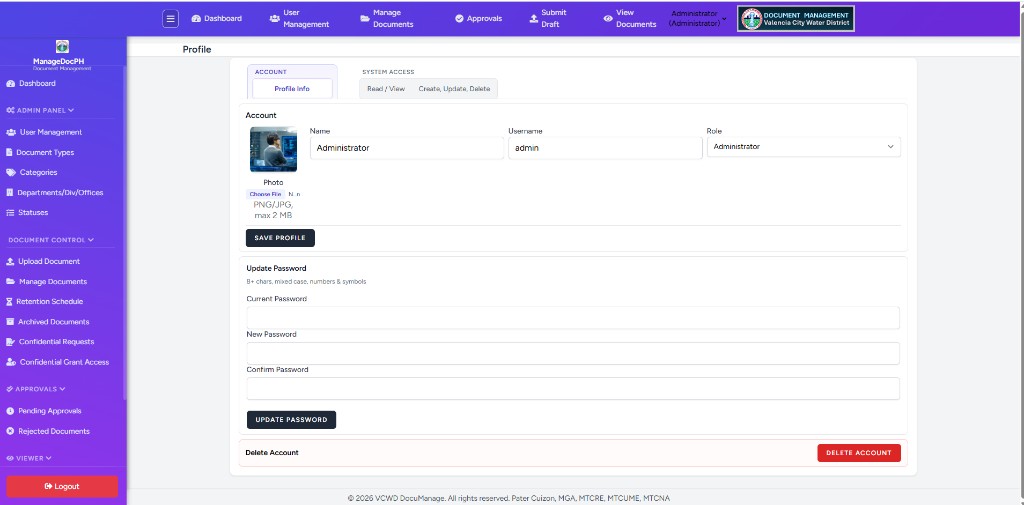
4.1 Account card
| Field | Description |
|---|---|
| Profile Photo | Preview on the left; Choose File for PNG or JPG (max 2 MB) |
| Name | Display name (required) |
| Username | Login ID (required, unique) |
| Role | Dropdown for administrators; read-only for other roles on own profile |
- Update fields as needed.
- Click Save Profile at the bottom of the Account card.
- Wait for the brief Saved. confirmation.
4.2 Update Password (own profile only)
Below the Account card on the same tab:
| Field | Notes |
|---|---|
| Current Password | Your existing login password |
| New Password | At least 8 characters; upper and lower case, numbers, and symbols |
| Confirm Password | Must match New Password |
- Fill all three fields.
- Click Update Password.
- Success message: Password successfully updated!
4.3 Delete Account (own profile only)
Red-bordered section at the bottom of Profile Info.
- Click Delete Account.
- Read the warning in the dialog.
- Enter your password and confirm.
5. System Access — Read / View tab
Open SYSTEM ACCESS → Read / View. Controls which departments’ documents the user may see.
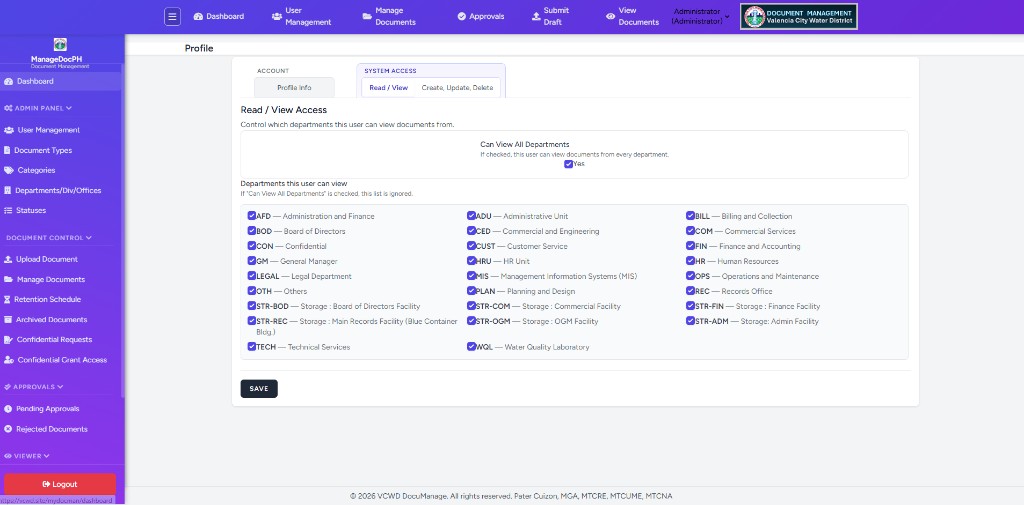
5.1 Can View All Departments
- Checked (Yes): User can view documents from every department. The department list below is ignored.
- Unchecked: Only departments checked in the list are visible.
Only Administrators can change this setting.
5.2 Departments this user can view
Scrollable three-column checkbox grid. Each row shows code — full name (e.g. FIN — Finance and Accounting).
- Uncheck Can View All Departments if you need to limit access.
- Check each department the user may view.
- Click Save at the bottom of the tab.
Department codes match the Office(s) column in User Management.
6. System Access — Create, Update, Delete tab
Open SYSTEM ACCESS → Create, Update, Delete. Sets document actions per department (for departments the user can view).
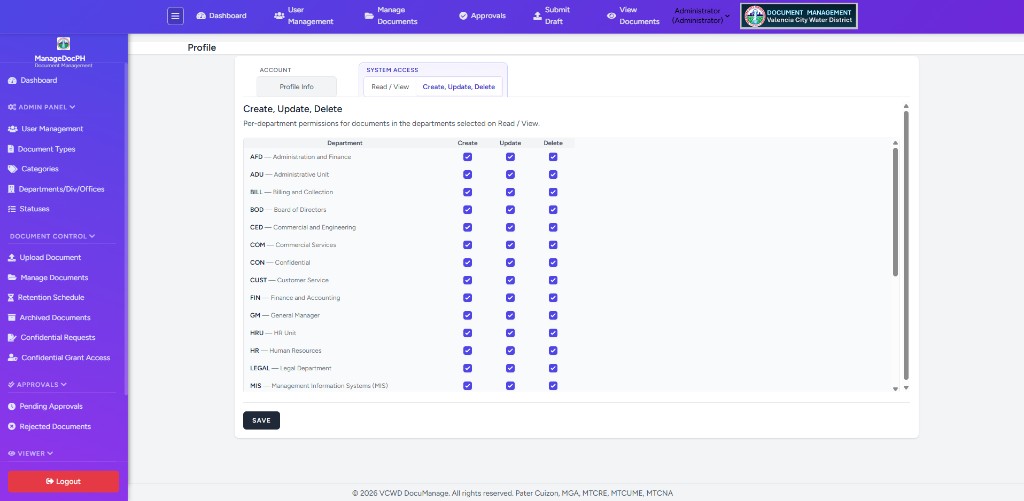
Table columns: Department | Create | Update | Delete.
- Check each permission per row according to office policy.
- Permissions apply only to documents in departments selected on Read / View (or all departments if Can View All is on).
- Non-administrators see this table disabled.
- Review each department row.
- Enable Create / Update / Delete as allowed.
- Click Save.
7. Password and delete — quick reference
| Action | Where | Who |
|---|---|---|
| Change own password | Profile Info → Update Password | Logged-in user |
| Delete own account | Profile Info → Delete Account | Logged-in user |
| Reset another user’s password | User Management → Edit | Administrator |
| Remove staff account | User Management → Delete | Administrator |
8. Administrator vs regular staff
| Feature | Administrator | Other roles |
|---|---|---|
| Edit own name / username / photo | Yes | Yes |
| Change own role | Yes | No (read-only) |
| Can view all departments | Yes | Disabled |
| Department view checkboxes | Yes | Disabled |
| CRUD permission table | Yes | Disabled |
| Edit another user via Profile | Yes | No |
| Password / Delete on others’ profiles | Hidden | Hidden |
9. Troubleshooting
| Issue | Solution |
|---|---|
| Photo upload fails | Use JPG or PNG under 2 MB |
| Cannot change role | Only an administrator can; ask ICT |
| User sees wrong documents | Check Read / View tab: Can view all and department boxes; click Save |
| User cannot upload/edit documents | Check Create, Update, Delete tab for that department |
| Office(s) shows — in User Management | Select departments on Read / View and save |
| Password rejected | Meet complexity rules; verify current password |
| CRUD boxes grayed out | Log in as Administrator and open that user’s Profile |
| No password section visible | Normal when editing another user; they change their own on /profile |