Valencia City Water District · DocuManage
Categories
Resume: §6 Multiple edit · §7 View Files1. Purpose
Categories group documents for filtering and reporting (e.g. Accounting, Audit & Compliance, Billing & Collection). When uploading or editing a document, users pick a category from this list.
2. How to open
- Sign in as Administrator.
- Sidebar → Admin Panel → Categories.
URL: /maintenance/categories
3. Screen layout
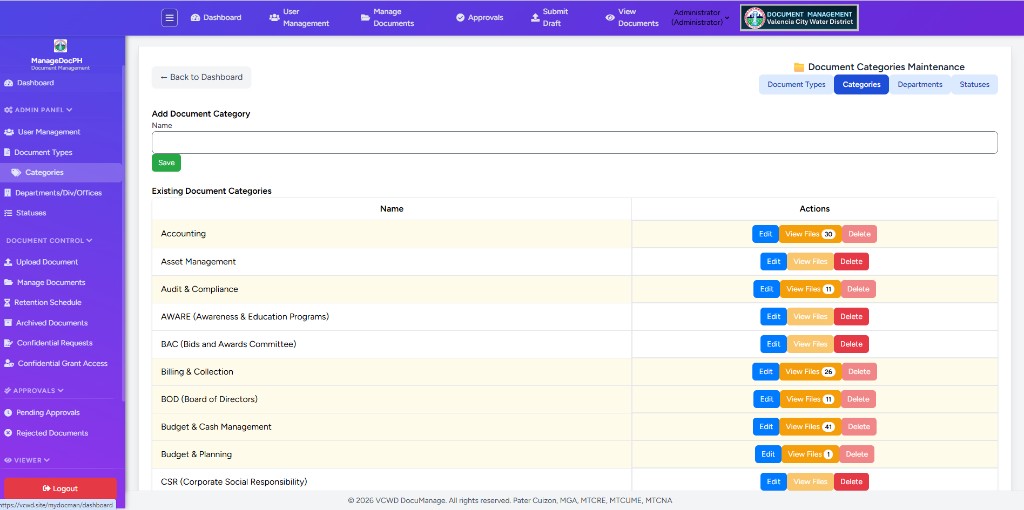
| Section | Description |
|---|---|
| Tabs | Document Types · Categories · Departments · Statuses |
| Add Document Category | Name field + Save (§4) |
| Existing Document Categories | Table with Edit, View Files, Delete (§5) |
4. Add Document Category
- Enter a unique Name.
- Click green Save (spaced below the input field).
5. Existing categories table
| Column / control | Description |
|---|---|
| Name | Category label used on documents |
| Edit (blue) | Inline edit the name (§6) |
| View Files (orange + count) | Open documents in this category (§7) |
| Delete (red) | Remove empty category (§8) |
Rows with linked documents have a light yellow background. View Files and Delete are disabled until documents are reassigned elsewhere.
6. Multiple inline edit
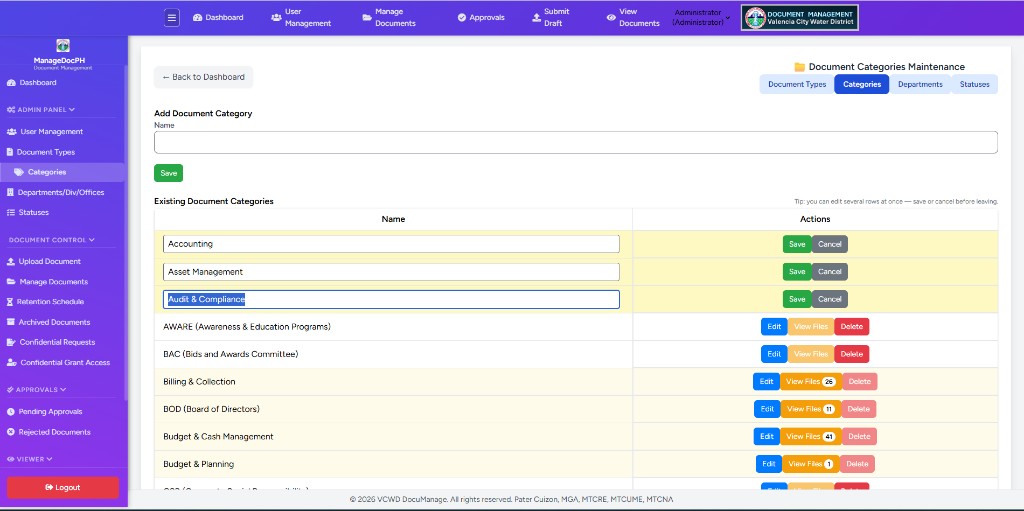
You can edit several category names at once directly in the table — same pattern as Document Types.
6.1 Enter edit mode
- Click blue Edit on one or more rows.
- Each row turns light yellow; the name becomes a text field.
- Buttons change to green Save and grey Cancel per row.
6.2 Save all / Cancel all bar
When any row is in edit mode, a yellow alert bar appears above the table (it stays hidden on normal page load):
- e.g. 3 categories open for editing · remember to Save or Cancel
- Adds unsaved count when a name was changed (e.g. · 1 unsaved change)
- Save all — saves every row that was changed
- Cancel all — closes all open edits (confirms if there are changes)
- Rows with unsaved text show an orange left border and dot
6.3 Single-row Save / Cancel
| Button | Action |
|---|---|
| Save | Saves that row only |
| Cancel | Discards changes for that row (asks if text was changed) |
7. View Files modal
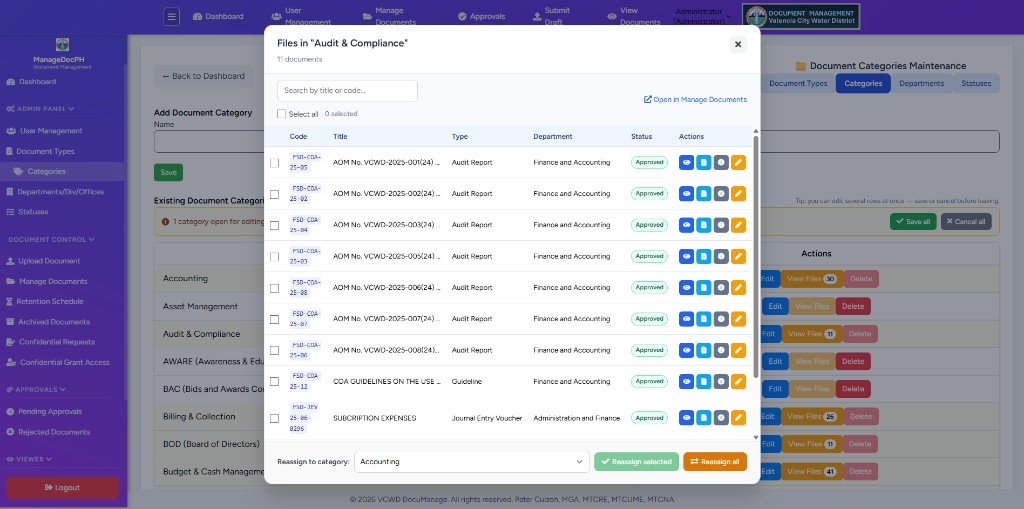
Click orange View Files (badge shows document count) to review and manage documents in that category. The modal title shows the category name and total count (e.g. Files in "Audit & Compliance" — 11 documents).
7.1 Toolbar & table
| Control | What it does |
|---|---|
| Search | Filter the list by title, code, type, or department |
| Select all reassignable | Checks every row you are allowed to reassign (see §7.3) |
| N selected | Count of checked rows for bulk reassign |
| Open in Manage Documents | New tab → Manage Documents filtered to this category |
| Table columns | Checkbox · Code · Title · Type · Department · Status · Actions |
| Archived badge | Soft-deleted documents show an Archived tag (Administrator view) |
7.2 Row action buttons (per document)
Each row has four icon buttons. They open in a new browser tab. The server enforces the same rules if you try to open a URL directly.
| Icon | Color | Name | Opens | Who can use it |
|---|---|---|---|---|
| Eye | Blue | View | Full-page document viewer | Users with Read/View access to that document (department visibility or all-departments flag). Same rule as View Documents. |
| Document | Light blue | Preview | Inline preview or file download | Same as View — requires document visibility. Logs a preview in activity. |
| Info (i) | Grey | Details | Document details page (metadata, attachments, logs) | Same as View. Use this to upload more attachments or see full record info. |
| Pencil | Orange | Edit | Edit document form (type, category, department, etc.) | Update permission: Administrator and Document Controller always; Contributor only on documents they created (plus profile CRUD flags). Hidden/greyed if not allowed. |
7.3 Checkboxes & reassign (footer)
| Control | What it does | Permission required |
|---|---|---|
| Row checkbox | Select that document for bulk reassign | Update permission on that document (same as Edit). Row shows — if not allowed. |
| Reassign to category (dropdown) | Target category for selected or all documents | Administrator on Categories page; only documents you can update appear in the list |
| Reassign selected (green) | Moves checked documents to the chosen category | Update permission on each selected document |
| Reassign all (orange) | Moves every visible document in this category | Update permission on each document; server rejects if any row is not permitted |
7.4 Role summary (Categories page)
| Role | Categories page | Typical modal access |
|---|---|---|
| Administrator | Full access | All actions on all documents in the category |
| Document Controller | Not on this page* | — |
| Contributor / Viewer | Not on this page* | — |
*Lookup Maintenance (Categories) is Administrator-only. Document action rules still apply inside the modal so behaviour matches Manage Documents.
8. Delete a category
- Reassign or remove all documents first (use View Files).
- When the row has no files, click red Delete.
- Confirm deletion.
9. Troubleshooting
| Issue | What to do |
|---|---|
| Delete disabled | Category still has documents — reassign via View Files |
| View Files disabled | No documents in this category |
| Forgot to save edits | Use Save all before leaving; browser warns on refresh |
| Action icon greyed out | Your role or department access does not allow that action on that document |
| Checkbox shows — | You cannot reassign that document (no Update permission) |
| Reassign failed (403) | One or more documents are not permitted — select only rows you can edit |