Valencia City Water District · DocuManage
Document Types
Resume: §4 Add form · §6 Multiple edit1. Purpose
Document Types define how records are classified when uploaded (e.g. Audit Report, Bill of Materials, Backup Log). Each type includes:
- Name and short Code (shown on documents and reports)
- Optional Description
- Retention period and unit (Days, Months, Years, or Permanent) for document aging
- Legal basis (e.g. NAP GRDS reference)
- Disposition when retention ends (Archive, Destroy, Permanent Preservation)
Types drive the Retention Schedule module. Permanent types are not subject to expiry.
2. How to open Document Types
- Sign in as Administrator.
- Sidebar → Admin Panel → Document Types.
URL: /maintenance/types
3. Screen layout
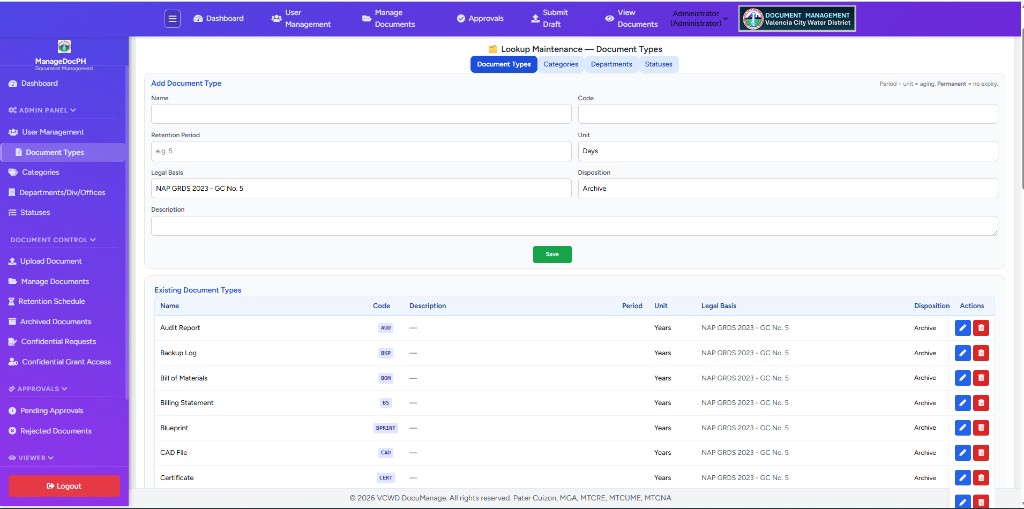
3.1 Header and tabs
| Element | Description |
|---|---|
| ← Back to Dashboard | Returns to the main dashboard |
| Lookup Maintenance — Document Types | Page title |
| Document Types (active tab) | Current module |
| Categories / Departments / Statuses | Other lookup lists (same layout pattern) |
3.2 Page sections
| Section | Purpose |
|---|---|
| Add Document Type | Compact form to create a new type (§4) |
| Existing Document Types | Table with inline and multiple edit (§5–§6.2) |
Tip above the table: edit several rows at once — use Save all or Cancel all before leaving.
4. Add Document Type
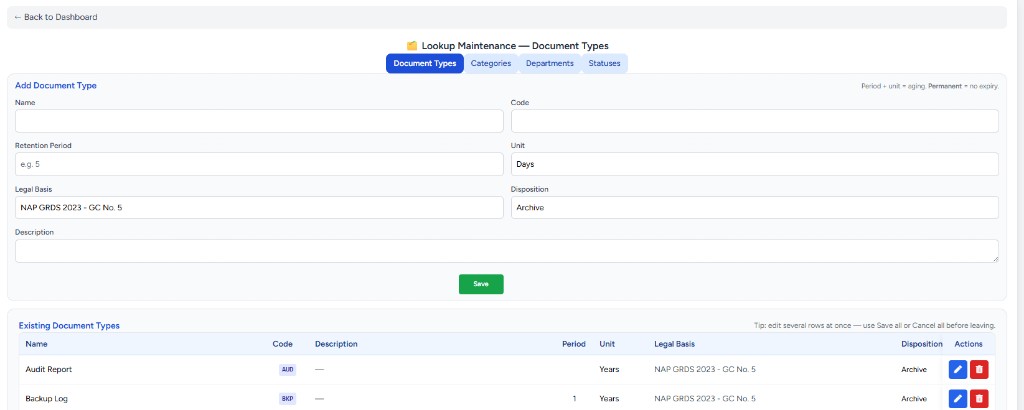
The add form is at the top of the page so the table below stays visible. Layout adapts to screen size:
- Mobile: fields stacked in one column
- Tablet: two columns
- Desktop (wide): three columns
4.1 Fields
| Field | Required | Notes |
|---|---|---|
| Name | Yes | Full type name (e.g. Bill of Materials) |
| Code | Yes | Short unique code (e.g. BOM, AUD) |
| Retention Period | Yes* | Number (e.g. 5). *Not required if unit is Permanent |
| Unit | Yes | Days, Months, Years, or Permanent |
| Legal Basis | No | Default: NAP GRDS 2023 - GC No. 5 |
| Disposition | Yes | Archive, Destroy, or Permanent Preservation |
| Description | No | Optional notes |
4.2 Save
- Fill the fields.
- Click the green Save button (compact, right-aligned on wide screens).
- On success, the new type appears in the table and a confirmation message may show at the top.
5. Existing Document Types table
The table lists every document type currently in the system.
5.1 Columns
| Column | Description |
|---|---|
| Name | Full type name |
| Code | Short code in a colored badge |
| Description | Text or — if empty |
| Period | Retention number, or — for Permanent |
| Unit | Days, Months, Years, or Permanent |
| Legal Basis | Legal reference text |
| Disposition | Archive, Destroy, or abbreviated Perm. Pres. |
| Actions | Icon buttons (see §7) |
On smaller screens, scroll the table horizontally. The Actions column stays pinned on the right.
6. Inline edit mode
You can edit a type directly in the table without leaving the page. Click the blue Edit (pen) icon on any row — or on several rows at once for batch editing.
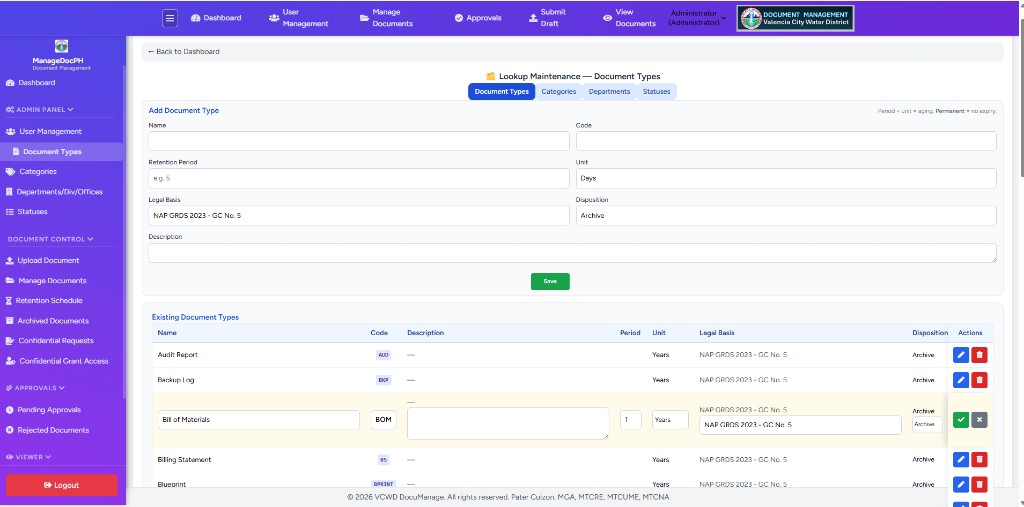
6.1 Enter inline edit (one row)
- Click the blue Edit icon (pen) in the row’s Actions column.
- The row highlights light yellow.
- Editable cells: Name, Code, Description, Period, Unit, Legal Basis, Disposition.
- Action icons change to Save (green check) and Cancel (grey X).
6.2 Multiple inline edit & unsaved-changes bar
Open edit mode on more than one row before saving — useful when updating several types in one session (e.g. Audit Report and Backup Log together).
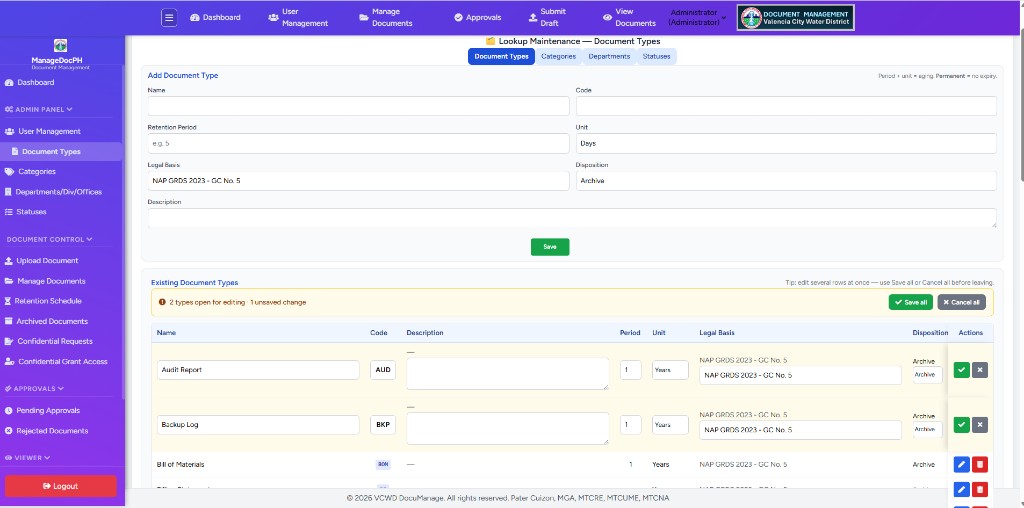
What appears while rows are open
| Element | Description |
|---|---|
| Yellow alert bar | Above the table — e.g. 2 types open for editing · 1 unsaved change or remember to Save or Cancel |
| Save all (green) | Saves every row that has changes; rows without changes can be closed in one step |
| Cancel all (grey) | Closes all open edits; asks for confirmation if any row has unsaved changes |
| Orange left border | Row has edited fields not yet saved |
| Light yellow row | Row is in edit mode (with or without unsaved changes) |
Workflow example
- Click Edit on Audit Report — change Description.
- Click Edit on Backup Log — adjust Period or Unit.
- Review the alert bar (2 types open · 1 unsaved change).
- Click Save all to commit both, or use the green check on each row individually.
- To discard everything, click Cancel all.
6.3 Save or cancel (single row)
| Button | Icon | Action |
|---|---|---|
| Save | Green check | Saves that row only; updates the table without reloading the page |
| Cancel | Grey X | Discards changes for that row; asks to confirm if the row was modified |
6.4 Retention while editing
- If Unit is set to Permanent, the Period field is disabled and cleared.
- For other units, enter a retention number in Period.
7. Action buttons (icons)
Action buttons are small icon buttons with tooltips on hover.
7.1 View mode (normal)
| Icon | Color | Tooltip | Action |
|---|---|---|---|
| Pen | Blue | Edit | Enter inline edit mode |
| Trash | Red | Delete | Open delete confirmation (§8) |
7.2 Edit mode
| Icon | Color | Tooltip | Action |
|---|---|---|---|
| Check | Green | Save | Save inline edits |
| X | Grey | Cancel | Cancel inline edits |
8. Delete a type
- In view mode, click the red Delete (trash) icon.
- Confirm in the dialog (Confirm deletion).
- Click Delete to remove the type permanently.
9. Retention and disposition
These fields on each document type are the source of truth for the Retention Schedule dashboard (Document Control). The dashboard reads each document’s type and issue date — it does not store separate retention rules per document.
| Field (Add form / table) | Meaning | On Retention Schedule |
|---|---|---|
| Retention Period + Unit | How long documents of this type are kept (Days, Months, Years) | Retention and Expiry columns |
| Legal Basis | Regulation reference (e.g. NAP GRDS 2023 — GC No. 5) | Legal Basis column |
| Disposition | What to do when retention ends | Disposition column |
| Permanent unit | No expiry; Period is not used | Type excluded from dashboard |
| Disposition: Archive | Records move to archived status when retention is met | — |
| Disposition: Destroy | Records may be destroyed per policy when retention is met | — |
| Disposition: Permanent Preservation | Keep permanently after retention event | — |
10. Troubleshooting
| Issue | What to do |
|---|---|
| Cannot see Document Types | Sign in as Administrator |
| Save fails on new type | Check required fields; Code must be unique |
| Inline save fails | Check Period is set unless Unit is Permanent |
| Delete blocked | Documents still use this type—reassign them first |
| Forgot to save open edits | Use Save all on the yellow bar; browser warns on refresh/close |
| Save all partial failure | Message shows how many saved vs failed — fix open rows and retry |
| Period field disabled | Unit is Permanent—this is expected |
| Tooltip hidden behind table | Hover again; tooltips float above the table |
Related documentation
- 03 — User Management
- 10 — Retention Schedule (uses type retention settings)
- Documentation index
- 05 — Categories (same multiple-edit pattern)