Valencia City Water District · DocuManage
Departments / Div / Offices
Resume: §4 Add form · §6 Multiple edit1. Purpose
Departments (divisions, offices, units) define organizational units used to:
- Assign documents to an owning office
- Limit Viewer and Contributor access by department
- Track document movements between offices
2. How to open
- Sign in as Administrator.
- Sidebar → Admin Panel → Departments/Div/Offices.
URL: /maintenance/departments
3. Screen layout
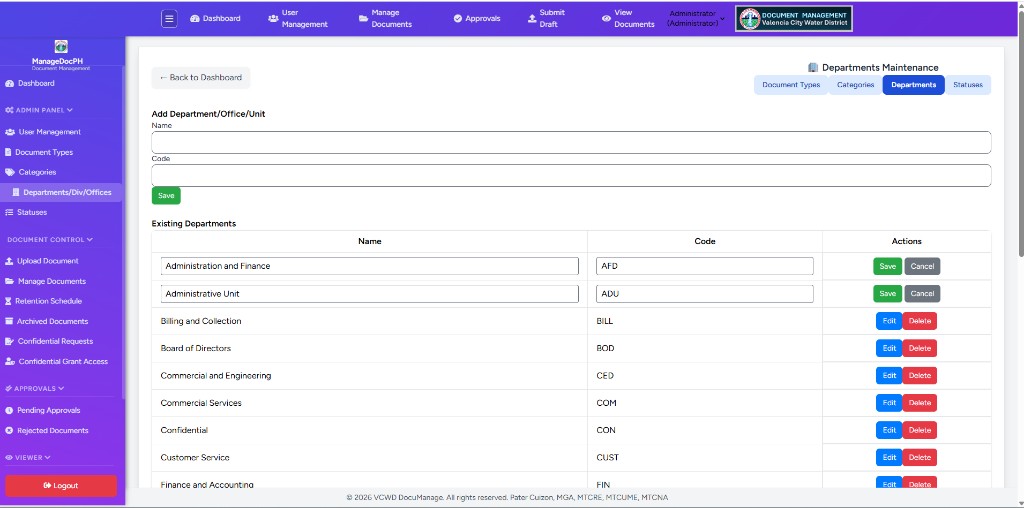
| Section | Description |
|---|---|
| Tabs | Document Types · Categories · Departments · Statuses |
| Add Department/Office/Unit | Name + Code + Save (§4) |
| Existing Departments | Table with Edit and Delete (§5–§6) |
Tip above the table: edit several rows at once — save or cancel before leaving.
4. Add Department/Office/Unit
- Enter Name (full office name).
- Enter Code (short label, stored uppercase).
- Click green Save (spaced below the Code field).
5. Existing departments table
| Column | Description |
|---|---|
| Name | Full department name |
| Code | Short code shown in lists and reports |
| Actions | Edit (blue) · Delete (red) |
6. Multiple inline edit
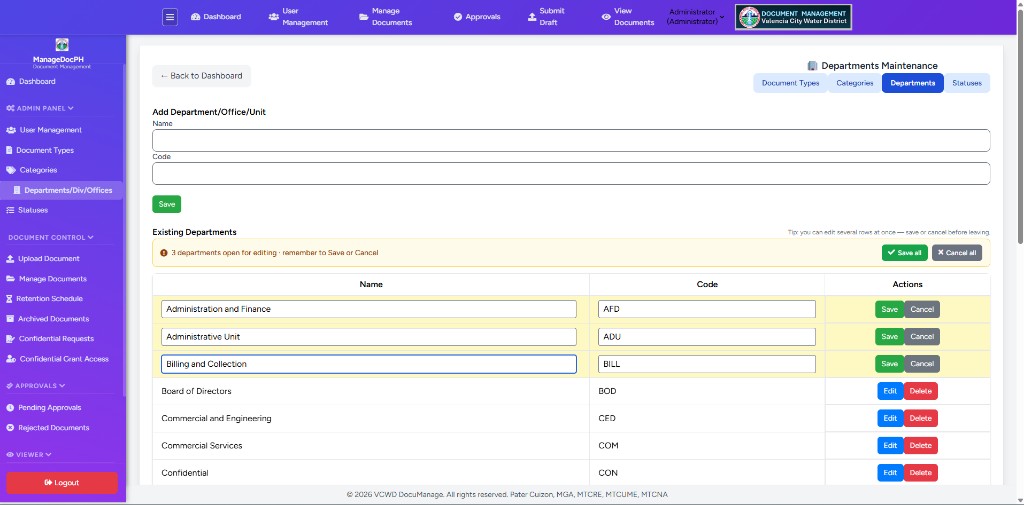
Edit several departments at once — change Name and/or Code on multiple rows before saving. Same pattern as Document Types and Categories.
6.1 Enter edit mode
- Click blue Edit on one or more rows.
- Each row turns light yellow; Name and Code become text fields.
- Per-row buttons change to green Save and grey Cancel.
6.2 Save all / Cancel all bar
When any row is in edit mode, a yellow alert bar appears above the table (hidden on normal page load):
| Element | Action |
|---|---|
| Alert text | e.g. 3 departments open for editing · remember to Save or Cancel — adds unsaved count when Name or Code was changed |
| Save all (green) | Saves every row that has changes |
| Cancel all (grey) | Closes all open edits; confirms if any row has unsaved changes |
| Orange left border | That row has unsaved Name or Code changes |
6.3 Workflow example
- Click Edit on Administration and Finance, Administrative Unit, and Billing and Collection.
- Change Name or Code on one or more rows.
- Review the alert bar (e.g. 3 departments open · 1 unsaved change).
- Click Save all, or use the green check on each row.
Before leaving: Save or cancel open edits before Back to Dashboard, maintenance tabs, or refresh. The browser warns if rows are still open.
6.4 Single-row Save / Cancel
| Button | Action |
|---|---|
| Save | Saves that row only (Name + Code) |
| Cancel | Restores original values; asks if the row was modified |
7. Delete a department
- In view mode, click red Delete.
- Confirm in the dialog.
Deleting is only safe when no users or documents depend on the department. Reassign users and documents first if needed.
8. User access & movements
- User Management — Viewer and Contributor roles are tied to Allowed Departments.
- Users see documents only for departments they are allowed unless they have all-departments access.
- Document Movements — From/To department on movement records use this list.
9. Troubleshooting
| Issue | What to do |
|---|---|
| Save fails — duplicate | Name and Code must be unique |
| Bar not visible on load | Expected — bar appears only when a row is in edit mode |
| Forgot to save | Use Save all; browser warns on leave |
| Save all partial failure | Fix validation errors on open rows and retry |
Related documentation
- 04 — Document Types
- 05 — Categories
- 03 — User Management (department access)
- Documentation index