Valencia City Water District · DocuManage
Retention Schedule
Resume: §2 Document Types basis · §5 Summary cards1. Purpose
The Document Retention Dashboard helps you monitor which documents are past or approaching the end of their retention period, based on each document’s Issue Date and the retention rules on its Document Type (aligned with NAP GRDS 2023 and your office records policy).
Use this screen to plan reviews, corrections, archival, or disposition — not to delete records automatically.
2. Document Types — the basis for retention
Every row on the Retention Schedule comes from the document’s Document Type (lookup under Admin Panel → Document Types). Administrators set the rules once per type; all documents of that type inherit them.
On the Add form: “Period + unit = aging. Permanent = no expiry.”
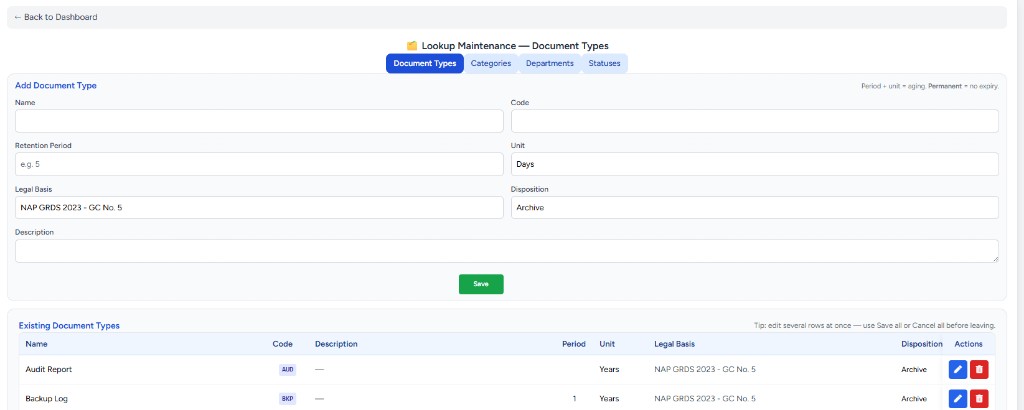
| On Document Types (Add / table) | On Retention Schedule table | Role in calculation |
|---|---|---|
| Retention Period + Unit (Days, Months, Years) | Retention column (e.g. 5 Years) | Added to the document’s Issue Date to get Expiry |
| Legal Basis (e.g. NAP GRDS 2023 — GC No. 5) | Legal Basis column | Reference only — shown for reviewers; does not change the math |
| Disposition (Archive, Destroy, Permanent Preservation) | Disposition column | Planned action after retention ends — follow office policy |
| Unit = Permanent | Not listed on Retention Schedule | No expiry; document is excluded from expired / near / safe counts |
Example (from your types list)
Audit Report (code AUD): Legal basis NAP GRDS 2023 — GC No. 5, disposition Archive, retention in Years (set Period when editing the row). Backup Log (BKP): Period 1, Unit Years, same legal basis and disposition — each uploaded Backup Log ages from its own Issue Date plus one year.
Formula (non-Permanent types):
Expiry = Issue Date + Retention Period (in Days, Months, or Years as set on the type)
3. How to open
- Sign in to DocuManage.
- In the left sidebar, open Document Control.
- Click Retention Schedule.
You can also reach it from the top bar when your role includes document control links.
URL: /retention
4. Screen layout
The page has four main areas: title and subtitle, three summary cards, filters, and three document tables (Expired, Near Expiry, Safe).
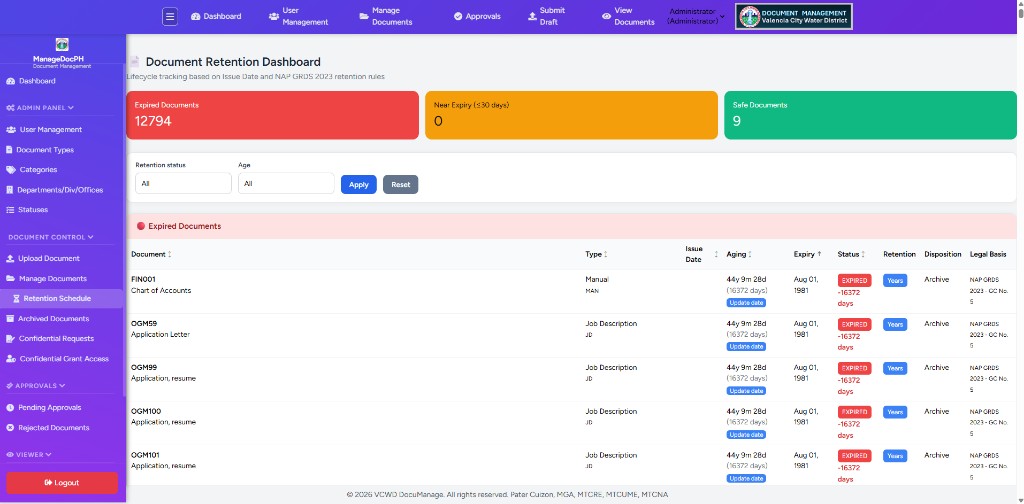
| Area | Description |
|---|---|
| Header | Document Retention Dashboard — lifecycle tracking based on Issue Date and NAP GRDS 2023 retention rules |
| Summary cards | Counts for Expired, Near Expiry (≤30 days), and Safe — see §5 |
| Filters | Retention status and Age — see §6 |
| Tables | Expired (red header), Near Expiry (yellow), Safe (green) — see §7 |
4. Summary cards
| Card | Color | Meaning |
|---|---|---|
| Expired Documents | Red | Retention period has ended (expiry date is today or in the past) |
| Near Expiry (≤30 days) | Orange / yellow | Retention ends within the next 30 days |
| Safe Documents | Green | More than 30 days remain before expiry |
6. Filters
Use the filter bar between the summary cards and the tables, then click Apply. Reset clears filters and returns to defaults.
| Filter | Options | Use |
|---|---|---|
| Retention status | All · Expired · Near expiry (≤30 days) · Safe | Show only documents in one lifecycle bucket |
| Age | All · 0–30 days · 31–365 days · 1–5 years · 5–10 years · 10+ years | Filter by how long ago the issue date was (document age) |
Sorting: click a column header in a table (Document, Type, Issue Date, Aging, Expiry, Status) to sort ascending or descending. Sort direction is kept when you apply filters.
6. Document tables
Each group has the same columns. Scroll down the page to see all three sections.
| Column | Contents |
|---|---|
| Document | Document code (bold) and title |
| Type | Document type name and code |
| Issue Date | Start date for retention calculation |
| Aging | Time since issue date (years, months, days) and total days; Update date link for Administrators — see §8 |
| Expiry | Calculated end of retention period |
| Status | Badge: EXPIRED (red), near-expiry warning, or safe; may show days remaining (negative when expired) |
| Retention | Period from document type (e.g. 5 Years) |
| Disposition | Planned action from type (e.g. Archive, Destroy) — follow office policy |
| Legal Basis | Reference on the document type (e.g. NAP GRDS 2023 — GC No. 5) |
How retention is calculated
- Type rules from §2 Document Types (period, unit, legal basis, disposition).
- Issue Date on each document is the start point.
- If Issue Date is missing, the system uses a default date (August 1, 1981) until corrected — many legacy rows may show as expired until dates are fixed.
- Permanent types do not appear on this dashboard.
8. Update issue date (Administrator)
In the Aging column, Administrators see a blue Update date link on each row.
- Click Update date for the document.
- The Edit Document screen opens (returns to Retention Schedule when you save).
- Set or correct Issue Date, then Save Changes.
- Return to Retention Schedule and click Apply or refresh to see updated expiry.
9. Roles & policy
| Role | Access |
|---|---|
| Administrator | Full view; Update date on expired/near/safe rows |
| Document Controller | View and filter; plan disposition per policy |
| Contributor | View and filter for allowed documents |
When retention has expired, follow VCWD records policy for archive or destruction. In DocuManage, use Archive on Manage Documents, then review soft-deleted records under Archived Documents.
Related documentation
- 04 — Document Types (retention period, disposition, legal basis)
- 09 — Manage Documents (edit metadata, archive)
- 11 — Archived Documents
- 02 — Dashboard (navigation)
- Documentation index