Valencia City Water District · DocuManage
Confidential Requests
Resume: §6 Submit request · §7 Next steps1. Purpose
Confidential Request Access is where an Administrator requests authorization to open a confidential-classified document. You must upload supporting proof (GM Memo or Board Resolution) before a time-limited access code can be granted.
Confidential documents cannot be viewed from Manage Documents (View / Quick Peek) until this workflow is completed and the access code is used.
2. How to open
- Sign in as Administrator.
- Sidebar → Document Control → Confidential Requests.
- Or on Manage Documents, click gray Confidential Page (opens this module).
URL: /documents/confidential/requests
← Back to Manage Documents returns to the main document list.
3. Screen layout
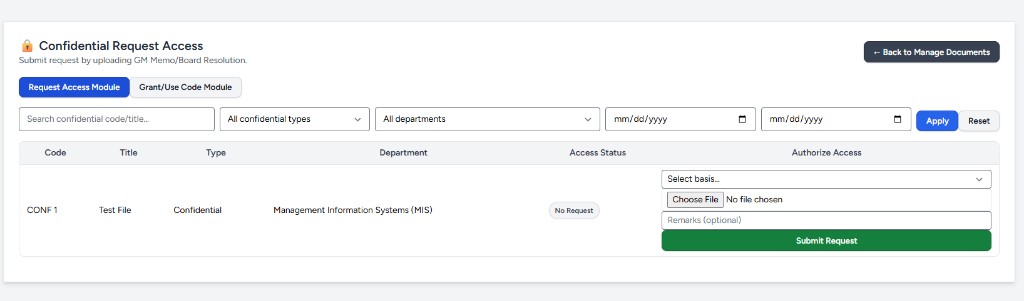
| Element | Description |
|---|---|
| Title | Confidential Request Access — Submit request by uploading GM Memo/Board Resolution. |
| Request Access Module | Blue when active — this guide |
| Grant/Use Code Module | After request — see Module 13 |
| Filters | Search and narrow the list — §4 |
| Table | One row per confidential document — §5, §6 |
Which documents appear here?
Documents whose type is treated as confidential: type name contains Confidential, or type code is confi, confidential, or conf. Set types under Document Types.
4. Filters
| Control | Use |
|---|---|
| Search confidential code/title… | Find a document by code or title |
| All confidential types | Filter to one document type |
| All departments | Filter to one department |
| Date fields (mm/dd/yyyy) | Created date from / to |
| Apply (blue) | Run filters |
| Reset | Clear filters |
5. Table columns & access status
| Column | Contents |
|---|---|
| Code | Document code (e.g. CONF 1) |
| Title | Document title |
| Type | e.g. Confidential |
| Department | Owning department (e.g. MIS) |
| Access Status | Workflow badge (see below) |
| Authorize Access | Request form for that row |
Access Status badges
| Badge | Meaning |
|---|---|
| No Request (grey) | No request submitted yet for this document |
| Requested (yellow) | Proof uploaded; waiting for access code in Grant module |
| Granted (blue) | Code issued; not yet used or window not started |
| Active (green) | Code used; access window running (30 minutes from first use) |
| Expired (red) | Window ended — submit a new request |
6. Submit a request (Authorize Access)
For each confidential document you need to open:
- Locate the row (use search/filters if needed).
- In Authorize Access, open Select basis… and choose:
- GM Memo, or
- Board Resolution
- Click Choose File and upload proof (PDF, JPG, PNG, DOC, or DOCX — max 10 MB).
- Optionally enter Remarks.
- Click green Submit Request for that row.
6.1 After you submit
When the request is saved successfully:
- A blue banner appears at the top, for example: Request submitted for CONF 1. Proceed to Grant/Use Code module to grant an access code.
- The row’s Access Status changes from No Request (grey) to Requested (yellow).
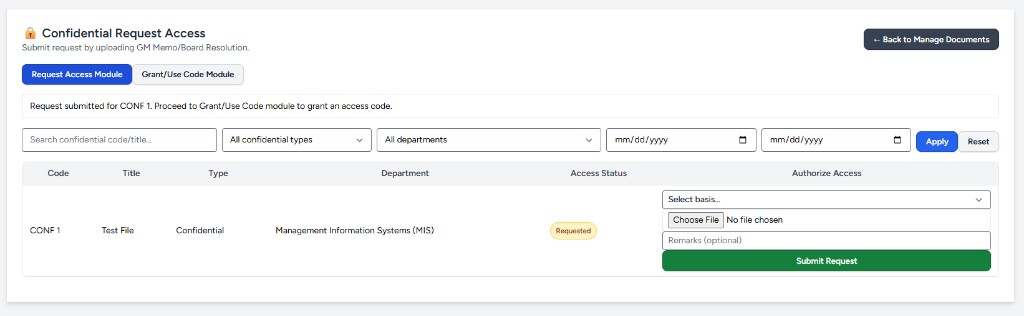
Next, open Grant/Use Code Module for that document — do not submit the same request again unless you need a new cycle after expiry or revoke.
7. Next steps
- Switch to Grant/Use Code Module (tab or sidebar Confidential Grant Access) — see Module 13 Figure 1.
- Click Grant Access Code for the document.
- Enter the code and click Open Confidential File.
- Access lasts 30 minutes from first successful use; use Remove Access to revoke early if needed.