Valencia City Water District · DocuManage
Document Movements
Resume: §3 Dashboard · §4 History · §6 Confirm receipt1. Purpose
Track physical transfer of documents between departments or offices: who moved it, from where, to where, when, and whether the receiving party confirmed receipt. Movements are also logged in Activity Log.
2. How to open
- Dashboard → scroll to Recent Document Movements — §3
- Go to Movements History (orange) — full list at
/movements— §4 - Pending Receipts KPI card or blue button — pending rows only
- From a document row: Move (Manage Documents) or Move Again on the dashboard table
3. Dashboard — Recent Document Movements
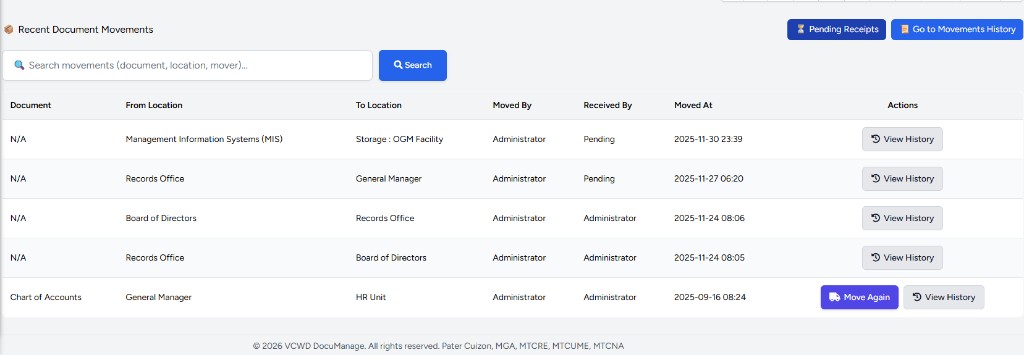
| Element | Description |
|---|---|
| Recent Document Movements | Section on the main dashboard showing the latest transfers |
| Pending Receipts (blue) | Filters this table to rows where receipt is not yet confirmed |
| Go to Movements History (orange) | Opens the full Document Movements page (/movements) |
| Search | Search movements (document, location, mover)… — filters the dashboard table |
| From Location / To Location | Department or office names (e.g. MIS, Records Office, General Manager, Storage : OGM Facility) |
| Received By | Receiver name, or Pending (yellow/grey) if not yet confirmed |
| View History (grey) | Opens movements history for all records |
| Move Again (purple) | Administrator / Document Controller only — start another move for that document |
4. Movements history page
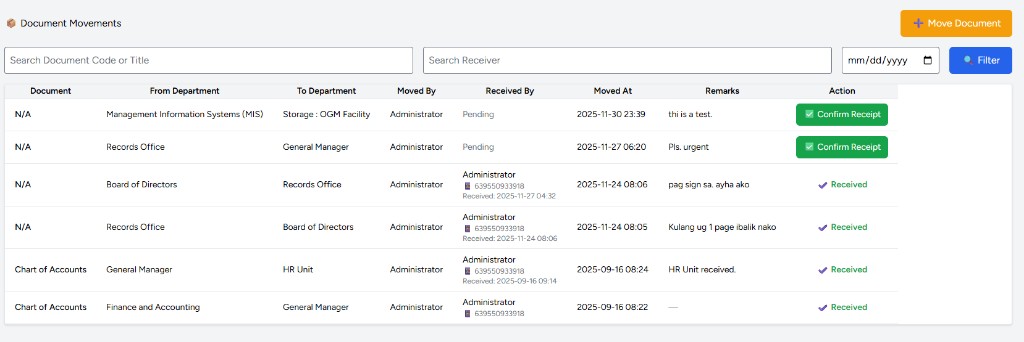
Page title: Document Movements. Orange Move Document links to Manage Documents to start a new move.
Filters
| Field | Use |
|---|---|
| Search Document Code or Title | Find movements for one document |
| Search Receiver | Filter by receiving user name |
| Date | Movement date (mm/dd/yyyy) |
| Filter (blue) | Apply search criteria |
URL parameter ?pending=1 shows pending receipts only (from Pending Receipts KPI or dashboard button). A link Show all appears when that filter is active.
Table columns
| Column | Contents |
|---|---|
| Document | Document title (e.g. Chart of Accounts) or N/A |
| From Department | Origin (e.g. Management Information Systems (MIS), Records Office) |
| To Department | Destination (e.g. Storage : OGM Facility, HR Unit, Board of Directors) |
| Moved By | User who recorded the move |
| Received By | When complete: name, mobile number, and Received: YYYY-MM-DD HH:MM. When not: Pending |
| Moved At | When the move was recorded |
| Remarks | Optional notes (e.g. Pls. urgent, HR Unit received.) — hover for full text if truncated |
| Action | Confirm Receipt (green) while pending; Received (checkmark) when done — §6 |
5. Move a document
- From Dashboard, click Move Again on a recent row, or from Manage Documents click Move on a document row, or use Move Document on the movements page.
- Select To department (and storage/location fields if shown on the move form).
- Enter remarks if needed (e.g. urgency or handoff notes).
- Submit — the new row appears with Pending under Received By until someone confirms receipt.
The move is recorded in Activity Log.
6. Confirm receipt
- On the movements page (Figure 2), find a row with Pending under Received By.
- Click green Confirm Receipt in the Action column.
- In the modal, select Received by (user) and confirm the received date/time.
- Submit — the row updates with receiver name, contact number, received timestamp, and Action shows Received.
Only movements that are still pending show the green Confirm Receipt button. Completed rows display Received and cannot be confirmed again.
7. Dashboard KPIs and links
| KPI / section | Links to |
|---|---|
| Pending Receipts (KPI card) | Movements filtered to pending only (?pending=1 or dashboard movement_pending=1) |
| Recent Document Movements | Last moves on dashboard + search + Go to Movements History |